Intega Go app (English)
Intega Go app guide for managers and employees
Intro
The Intega Go app can be used by anyone who has been created as a user in Intega HR.
In the app, employees can see absence balances and register working hours, absences and salary records. In addition, managers and administrators can approve registrations. If the Intega Go app is to be used for registration and approval, the company must have Self Service access to Intega HR.
Download Intega Go app
Download the App in Apple Store or Google Play Store by searching for 'Intega Go'. You can download the App via Intega HR web as well. Go to Settings -> Scan QR.
Login
At first login, you must use your company's CVR number, username (Brugernavn) and password (Kodeord). If the entered informations are correct, you will receive a 6-digit SMS code on the mobile number linked to your username in the Login Module. If you are not set up with a mobile number, you will receive the code in an e-mail.
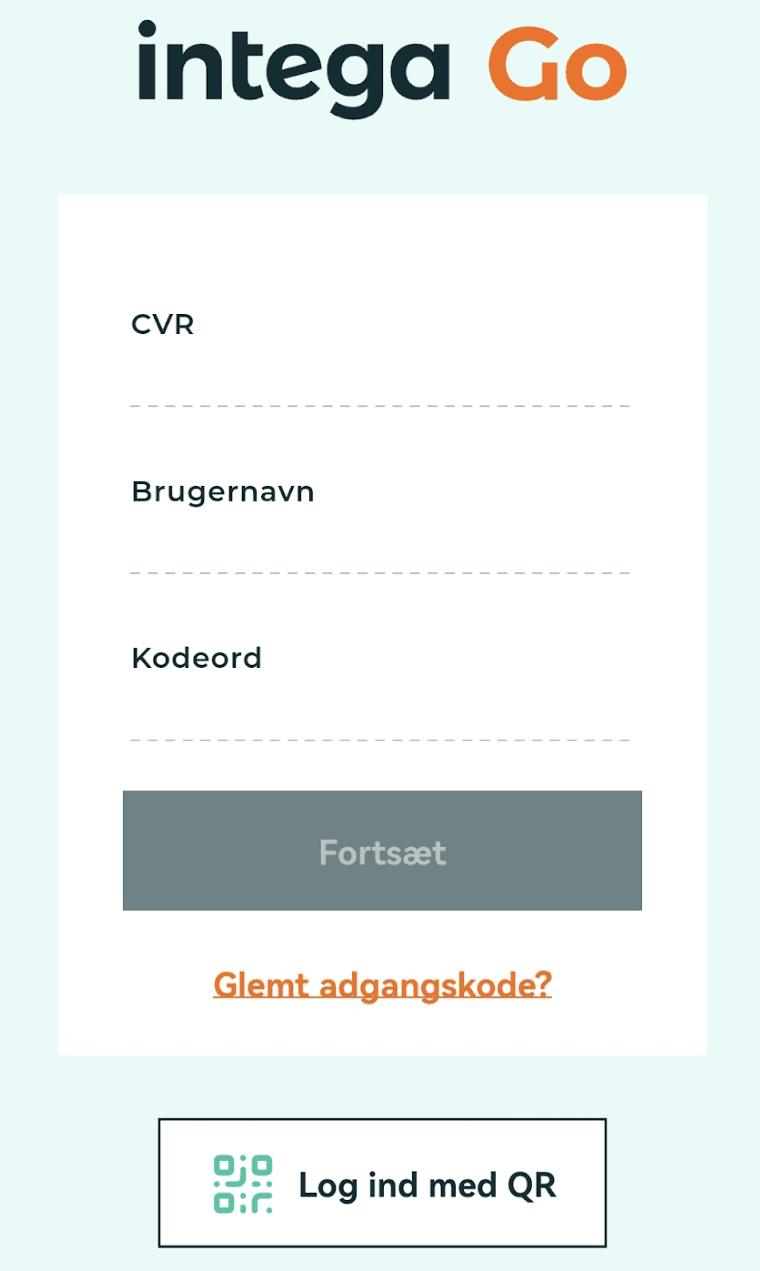
Then you create either a 4-digit PIN or an unlock pattern. It have to be the same PIN or pattern as you use to unlock your phone.
The informations will be saved until you click 'Log out' under 'Settings'. This will log you out of the app completely, and you will have to enter the CVR no. etc. again to log in. If you simply close the app, your login information will be saved and you can use the phone's PIN or use the phone's unlock pattern to open the app again.
Log in with QR
You can find the QR code by logging on to Intega HR. Go to Settings -> Scan QR.
Change language
You can change the language from Danish to English via the 'Indstillinger' icon. Click on 'Sprog' and select English.
How to use the App
You can choose the following functions at the bottom of the app:
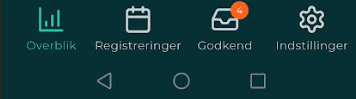
The Approve feature is only available to managers and administrators.
Overview
In 'Overview', your balances on holidays, extra holidays, care days etc. are shown. Display of balances is company-specific, so you will not necessarily see the same categories as here:
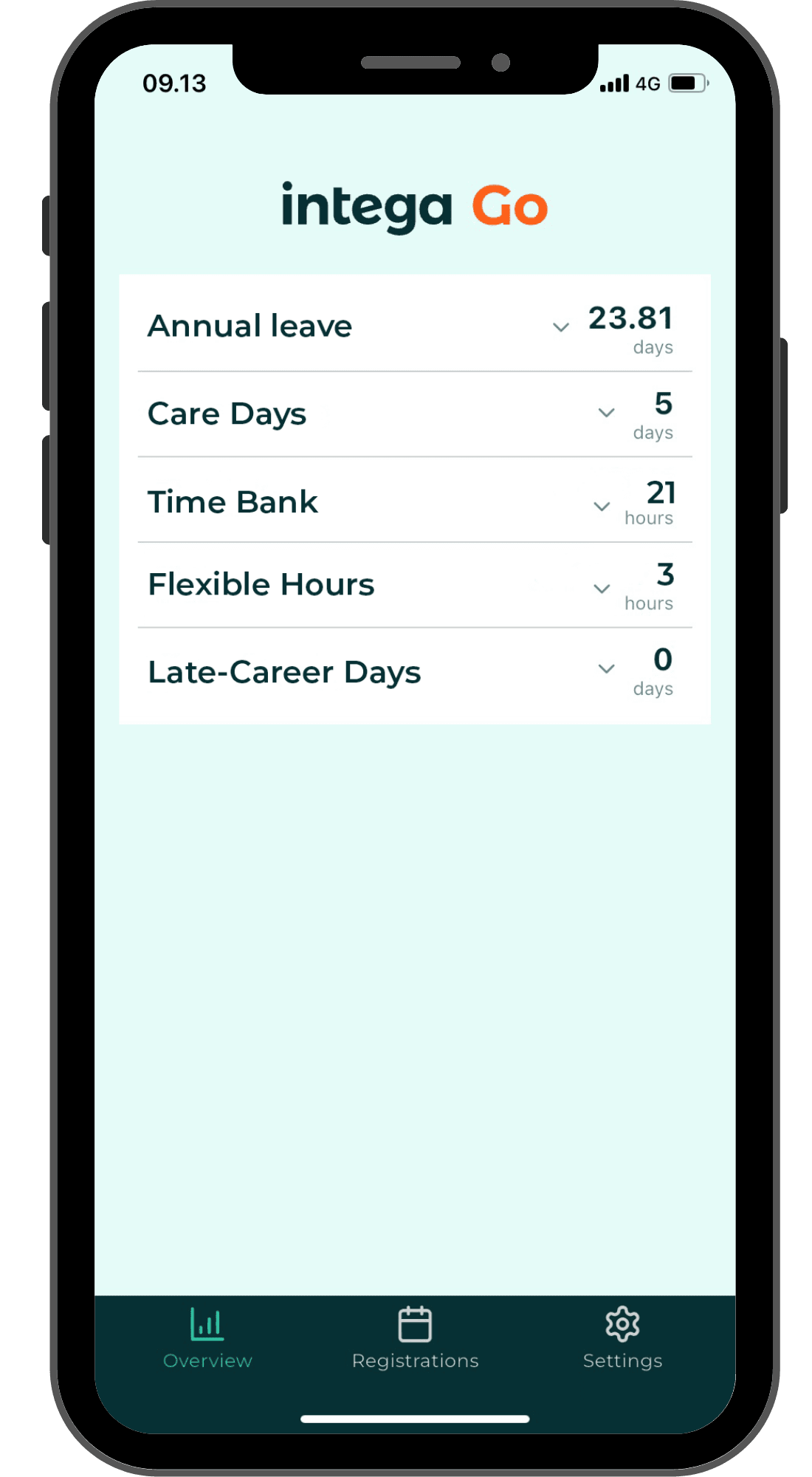
Click on the 'down arrow' next to the number of days/hours, to see further details about your balances.
⚠️ NOTE: Your balances may not be displayed correctly when payroll is running and a message appears at the top of the App.
Registrations
You create new registrations and view existing registrations by clicking on the calendar icon (Registrations).
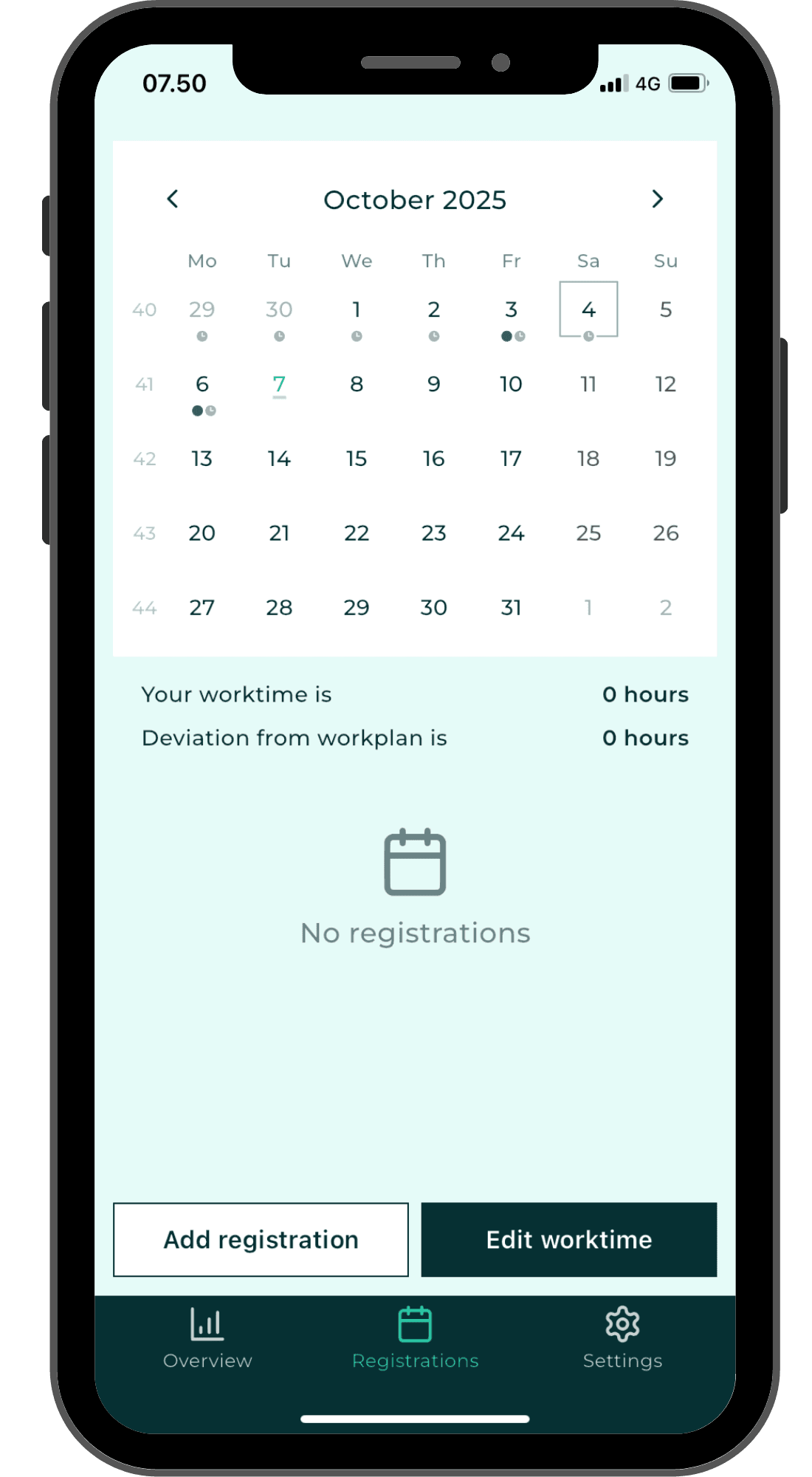
Calendar overview
The calendar shows registrations as colored dots on the relevant dates. The number of dots corresponds to the number of registrations, and each color represents a specific type of registration:
- red = disease
- orange = holiday/off
- green = company absence
- blue = payroll registration
- gray = working time registration
⚠️ NOTE: In contrast to Intega HR, you can save registrations in the Intega Go app, even if payroll is running. In these cases, the registrations are saved on the phone and will be proceed for approval when the payroll run is completed - currently this option does not work!
Register working hours
Just below the calendar, you can see whether or not you have registered working hours on the selected date.
Text for registered working hours:
Your work time is x.x hours
Deviation from workplan is x hours
Text for unregistered working hours:
You have not specified working hours for this day
Your planned working hours are x.xx hours
How to register working hours:
- Select the day you want to register
- Click on ‘Edit worktime’
- Click on ‘Confirm’ if you do not have a deviation in relation to the daily working hours
- Select 'Add deviation type' if you have a deviation in relation to your daily working hours
- select deviation type
- fill in the number
- write if necessary a comment on the registration (the field is not visible when registering an illness)
- select project no. if the field is visible and it is mandatory to fill in at your company
- click on 'Confirm'
Before confirming the registration, you can click on several dates and confirm several days at once.
Working hours can only be recorded for today's date or earlier; future working hours cannot be registered in advance.
⚠️ NOTE: Absence registrations in days are registered under Absence, while working time deviations in hours can be registered under Working hours.
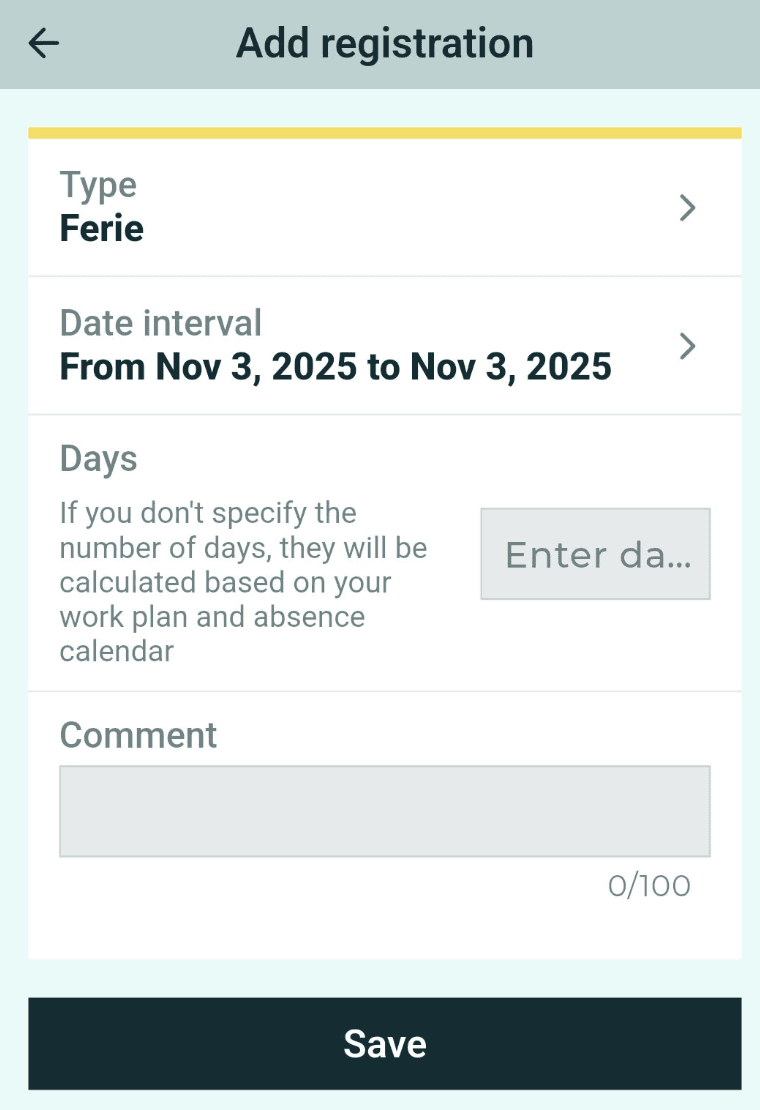
Register vacation, company absence, leave and illness
How to register holidays and other absences:
- Select a date in the calendar
- Click on 'Add registration'
- Select type in the categories Vacation, Company absence, Salary, Leave, Sickness (you may not have access to all categories)
- Select period in 'Date interval' or enter days/hours
- You can specify the time for registrations in hours
- Write if necessary a comment on the registration (the field is not visible when registering an illness)
- Select project no. if the field is visible and it is mandatory to fill in at your company
- Click on 'Save'
Register salary
In the 'Salary' category you can register everything that is not absence, e.g. hours, overtime, expenses and driving.
How to register salary:
- Select a date in the calendar
- Click on 'Add registration'
- Select type in the Salary category
- Enter hours/amount
- You can attach a file with additional documentation, but not when registering travel allowance (the file is saved in Intega HR under documents)
- Write if necessary a comment on the registration
- Select project no. if the field is visible and it is mandatory to fill in at your company
- Click on 'Save'
Register mileage allowance
How to register mileage allowance:
- Select a date in the calendar
- Click on 'Add registration'
- Select mileage allowance in the Salary category
- Write the car's registration number
- Select start address
- Select destination address
- Optionally choose round trip
- Enter perpose
- Click on 'Save'
You can overwrite the number of kilometers that the app calculates for you at any time..
Approve
The Approve icon shows a number if you have registrations to approve.
Approval takes place via this page, where the registrations are divided into types:
On the approval page, there is a small square with a check mark at the top. This can be used if you want to approve selected or all registrations at once. It is also possible to click on a single registration and approve or reject the registration.
In the top right corner, a small ‘funnel’ is also displayed, where you can choose between ‘All’ and ‘My team’. This access is managed via Intega HR.
⚠️ NOTE: Registrations cannot be approved during a payroll run.
Settings
Under Settings you have the following options:
Help
By clicking on Help, you will be taken to a FAQ for the App on intega.dk
Language
You can choose between Danish and English.
When the Intega Go app is installed, it will always be in Danish, even if the phone's language is different.
Log out
Here you log out of the app completely, so you must enter the CVR no., username and password to log in.